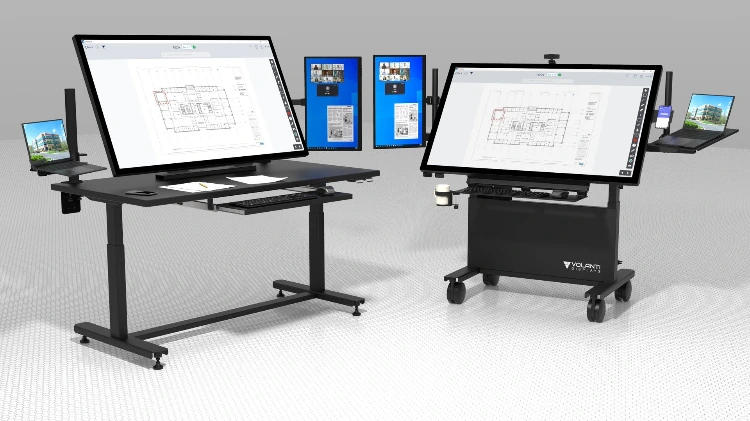
Here is a quick guide to calibrating Bluebeam on a Volanti Plan Review touchscreen.
Why Calibrate Bluebeam Revu?
Bluebeam includes a number of measurement functions, for example Dynamic Fill which will provide the area of a space such as a room. Calibration enables Bluebeam to provide accurate measurements.
How to Calibrate Bluebeam Review
This video shows how easy it is to set the calibration for a drawing on the Volanti Plan Review table touchscreen.
Some drawings include a scale on them, which can make the process easier as you can simply click on the scale and use the dimensions noted.
Further links:
Volanti Plan Review tables web page: /plan-review-tables
Dynamic fill example video:
Bluebeam calibration help page: https://support.bluebeam.com/online-help/revu-mac-2/Content/RevuHelp/Menus/Tools/Measure/Calibrate–MV.htm